 ThokDukaan
Add a product
Add a product with its name in your language, a category, GST, opening stock and a low-stock alert.
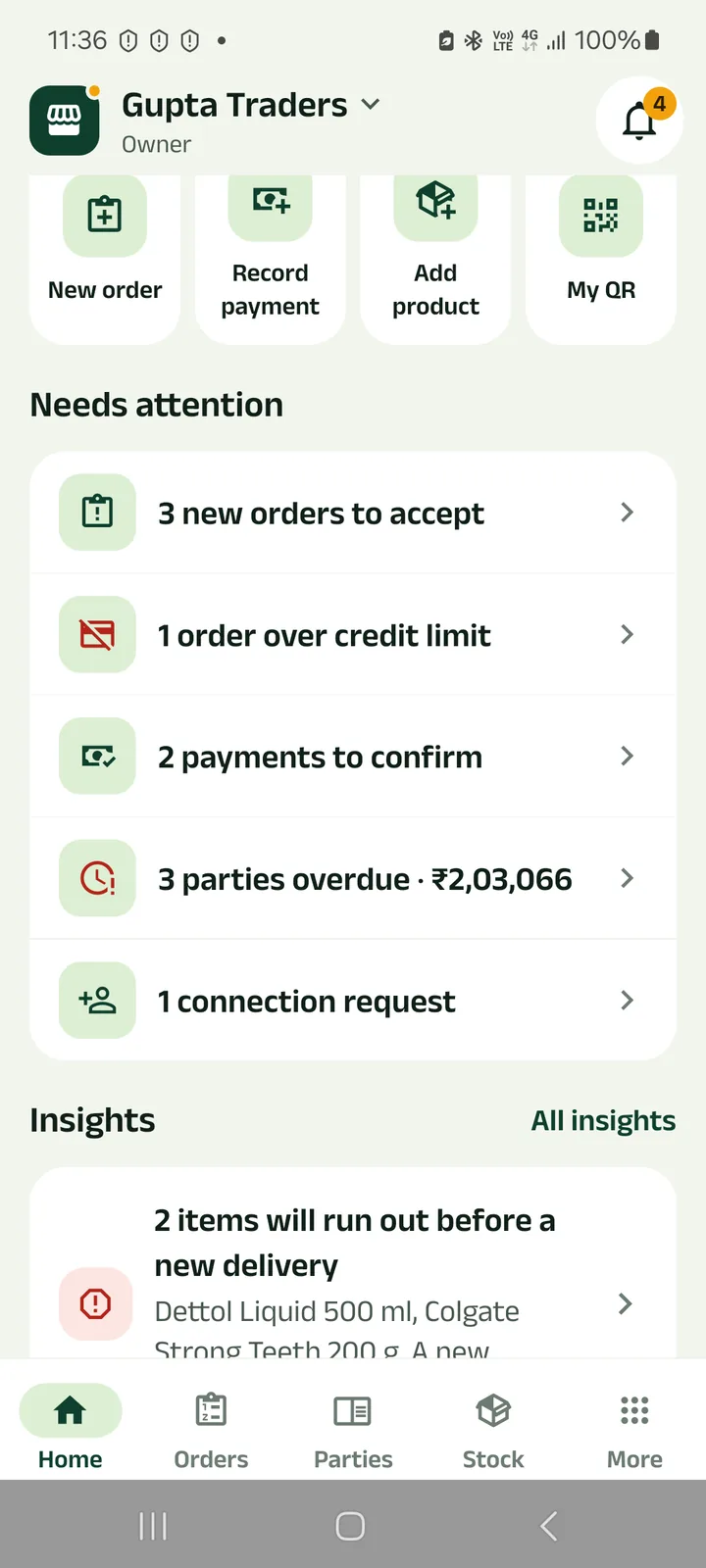
Step 1: Tap Add product
It is in the quick actions on Home, and on the Stock tab.
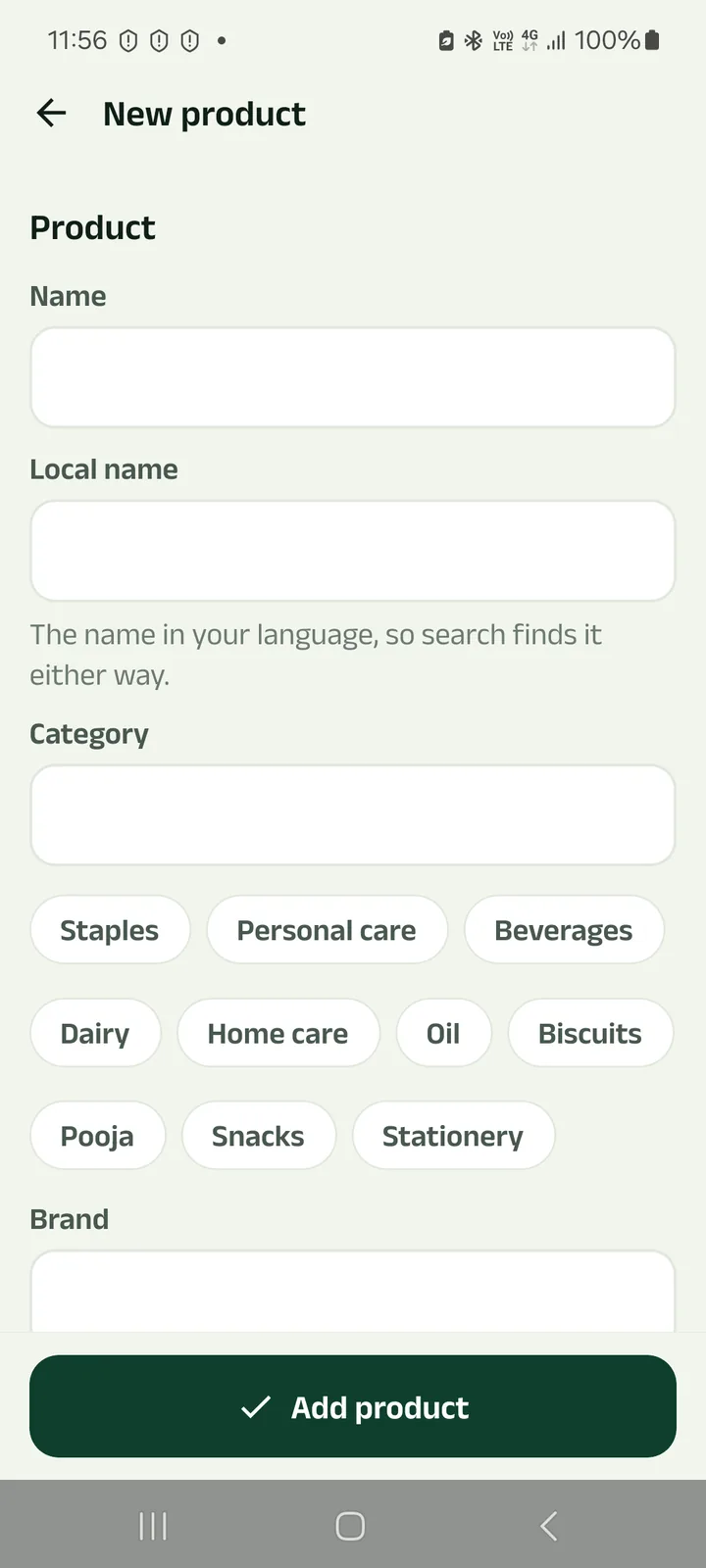
Step 2: Name it and pick a category
Add the local name too (for example आशीर्वाद आटा): search then finds the product either way.
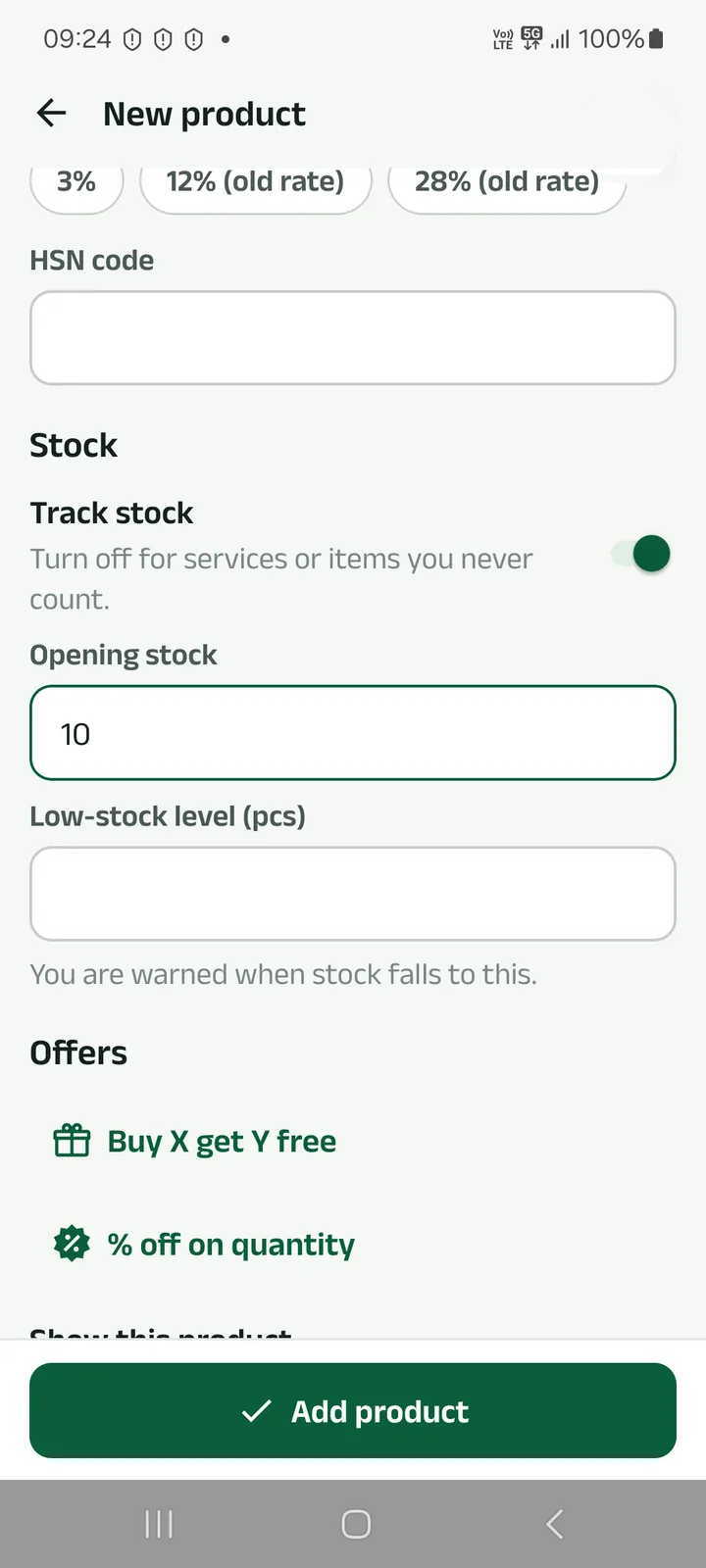
Step 3: Set GST, stock and offers
Choose the GST rate and HSN code, the opening stock, and a low-stock level so the app warns you in time. Offers such as “buy X get Y free” are optional.
Selling something you never count, like a service? Turn Track stock off.
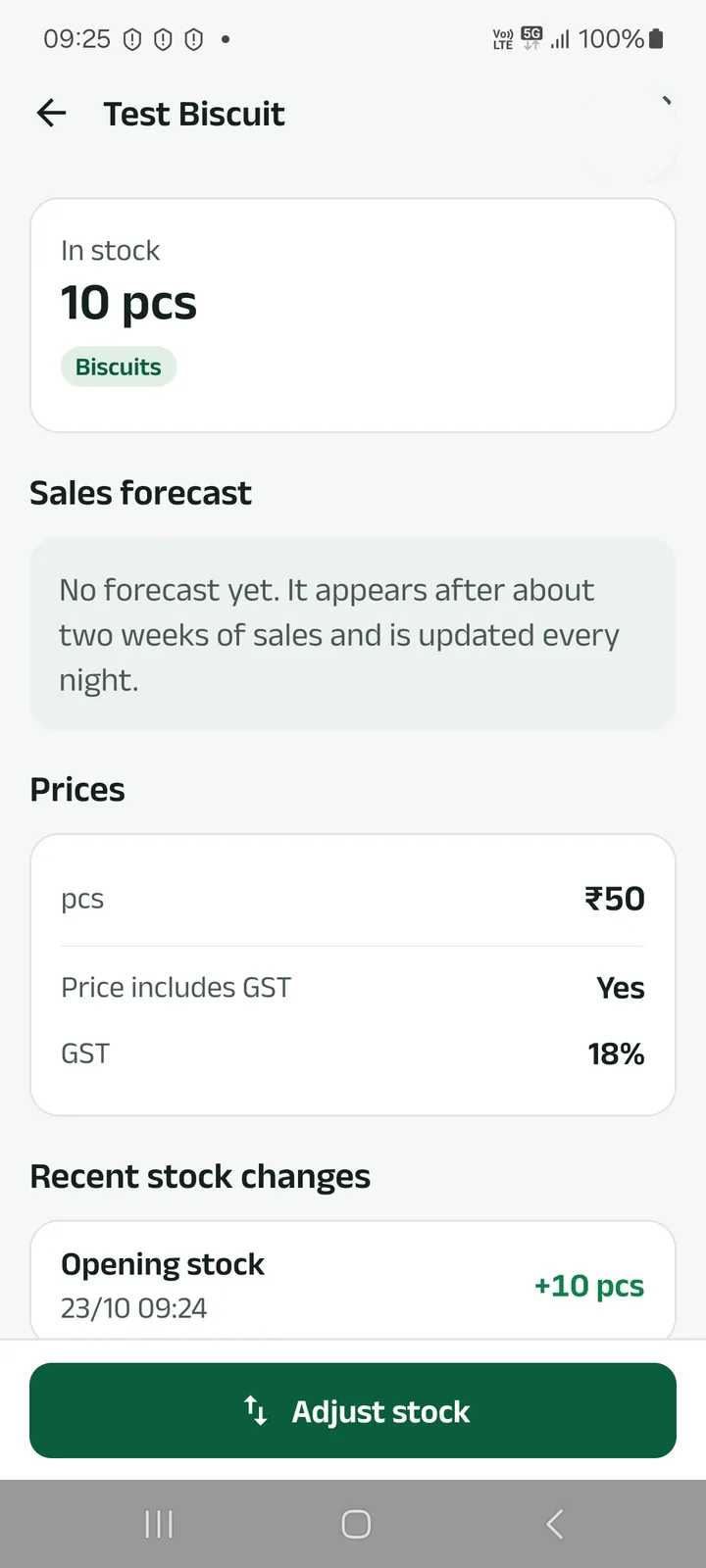
Step 4: Tap Add product. Done.
The product shows its stock, prices and every stock change. A sales forecast appears after about two weeks of sales.
Prefer to watch?
Add a product with its name in your language, a category, GST, opening stock and a low-stock alert.
Next tutorials
Get started
Pick your language, sign in with your mobile number and set up your business in four short steps.
Make a counter bill and print the receipt
Bill at the counter, take cash, UPI or credit, and print a 58 or 80 mm receipt or share it.
Record a payment
Got cash, a cheque, UPI or a bank transfer from a party? Record it and the shared khata updates.
Try it in the app
Everything above works the same on your phone.